All features

Everything Snipsera can do.

Capture, mark up, frame and record on Windows 11. Free, open source and saved on your PC.

Capture Scrolling capture Previews and pins Annotate Background tool Screen recording History and files Made for Windows

Capture

Grab exactly what you need with a shortcut, the tray or the all-in-one bar. The desktop freezes while you select, so menus and tooltips stay put.

  • Choose your own shortcuts, including Print Screen
  • Capture again while previews, pins or the editor are open
  • Snipsera hides its own windows before every capture
  • Press Esc or right-click to cancel
AreaDrag a rectangle over the frozen desktop.CtrlAltShift1
WindowClick any visible window to capture it.CtrlAltShift2
Full displayThe whole monitor under your pointer.CtrlAltShift3
Repeat last areaCapture the same rectangle again.CtrlAltShift4
All-in-one barArea, window, display, scroll or last area from one shortcut.CtrlAltShift5
Reopen last dismissedBring back the screenshot you just closed.CtrlAltShift6
A long article captured top to bottom as one tall image

Scrolling capture

Capture articles, chats and documents that run past the bottom of your screen. Select the part that scrolls, start, and Snipsera stitches one tall image as you go.

  • A live preview shows the image as it grows
  • Scroll yourself, or let Auto-scroll do it
  • Keeps everything captured so far if a view can't be lined up
  • Images up to 20,000 pixels tall

Previews and pins

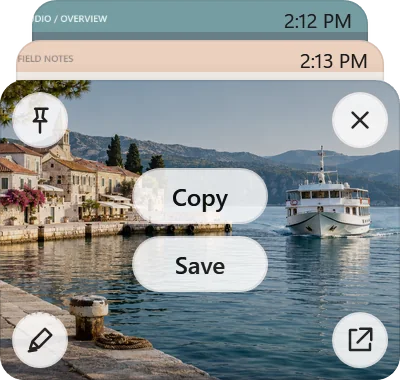
Every capture lands in a small floating preview. Copy, save, annotate or drag it straight into another app, right from the image.

  • Recent captures stack up, three layers deep
  • Pin up to eight captures above your other windows, with adjustable opacity
  • Previews close themselves after you copy, save or drag them
  • Hide every floating capture for a moment, then bring them back
  • Full keyboard control: Ctrl+C, Ctrl+S, Tab and Esc
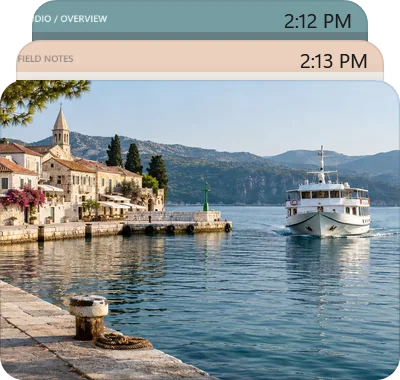
Three captures layered into a compact floating stack A floating preview with Copy, Save, Pin and Annotate controls on the image

Annotate

Point things out, add notes and hide what shouldn't be shared. Every mark stays editable, so you can move it, restyle it or change its words later.

  • Undo every change
  • Crop and resize the image
  • Save editable .snipsera projects
  • Export PNG or JPEG, copy, drag or pin
ArrowsClassic, filled, open and curved, with draggable ends and bend.
Text on the imageType in place in seven styles, from plain to callout and marker.
CounterNumbered circles for step-by-step guides.
StampsCheck marks, crosses, stars, question and exclamation marks.
Shapes and linesRectangles, ellipses and lines, clean or hand-drawn.
Highlighter and penMark up text or draw freehand.
Blur and pixelateSoften details you'd rather not show.
Solid maskCover sensitive content completely in exported images.

Background tool

Turn a plain capture into something ready for a post, a doc or a slide. Changes show live while you drag.

  • 15 gradients, solid colors or transparent
  • Padding, rounded corners and soft shadow
  • Square, landscape and portrait aspect ratios, with alignment
  • Auto-balance trims uneven margins and centers the content
  • Combine up to 32 images: drop, paste or add from History

Screen recording

Record an area, a window or a display as a video or a GIF. Pause when you need to; the result joins your previews ready to play, copy, save or drag.
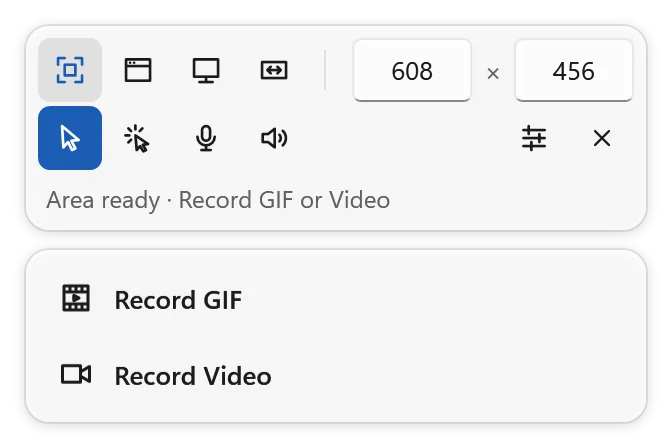
The recording toolbar: area, window and display modes, cursor, click, microphone and computer audio toggles, Record GIF and Record Video
Any sourceAn area, one window, a full display, or an exact pixel size.
MP4 or GIFH.264 video, or an animated GIF for quick demos.
Quality and frame rateCompact, Balanced or High, from 5 to 60 frames per second.
ResolutionOriginal size, 1080p, 720p or half size.
Voice and computer audioEither or both in MP4. Off until you turn them on.
Cursor and clicksShow or hide the cursor, and highlight each click with a ring.
Pause, resume, discardA small bar shows elapsed time; it stays out of the recording.
Recording cardsPlay, copy the file, save, drag or pin the result.

History and files

Nothing gets lost. Snipsera keeps a history of recent captures and saves copies where you choose.

Your latest 100 capturesOpen any of them again to copy, save, pin or edit.
Edits saved automaticallyReopen a capture and every mark is still editable.
Auto-save to a folderPNGs go to Pictures\Snipsera, or a folder you pick.
Separate video folderKeep recordings apart from your screenshots.

Made for Windows 11

Snipsera looks and behaves like part of Windows, and stays out of your way until you need it.
Light, dark and accentFollows your Windows theme, with Snap and Mica.
Lives in the trayStart with Windows if you like; it's off until you turn it on.
Respects your settingsContrast, transparency and reduced-motion preferences apply.
Private by designNo account, no uploads, no analytics. Privacy policy
Update checksDaily and optional, from the Store or GitHub.
Free and open sourceMIT licensed, with the code on GitHub.
Snipsera icon

Get Snipsera for Windows.

Free and open source. No account needed.

Get it from Microsoft Store Download from GitHub